
Help Sessions#
Note
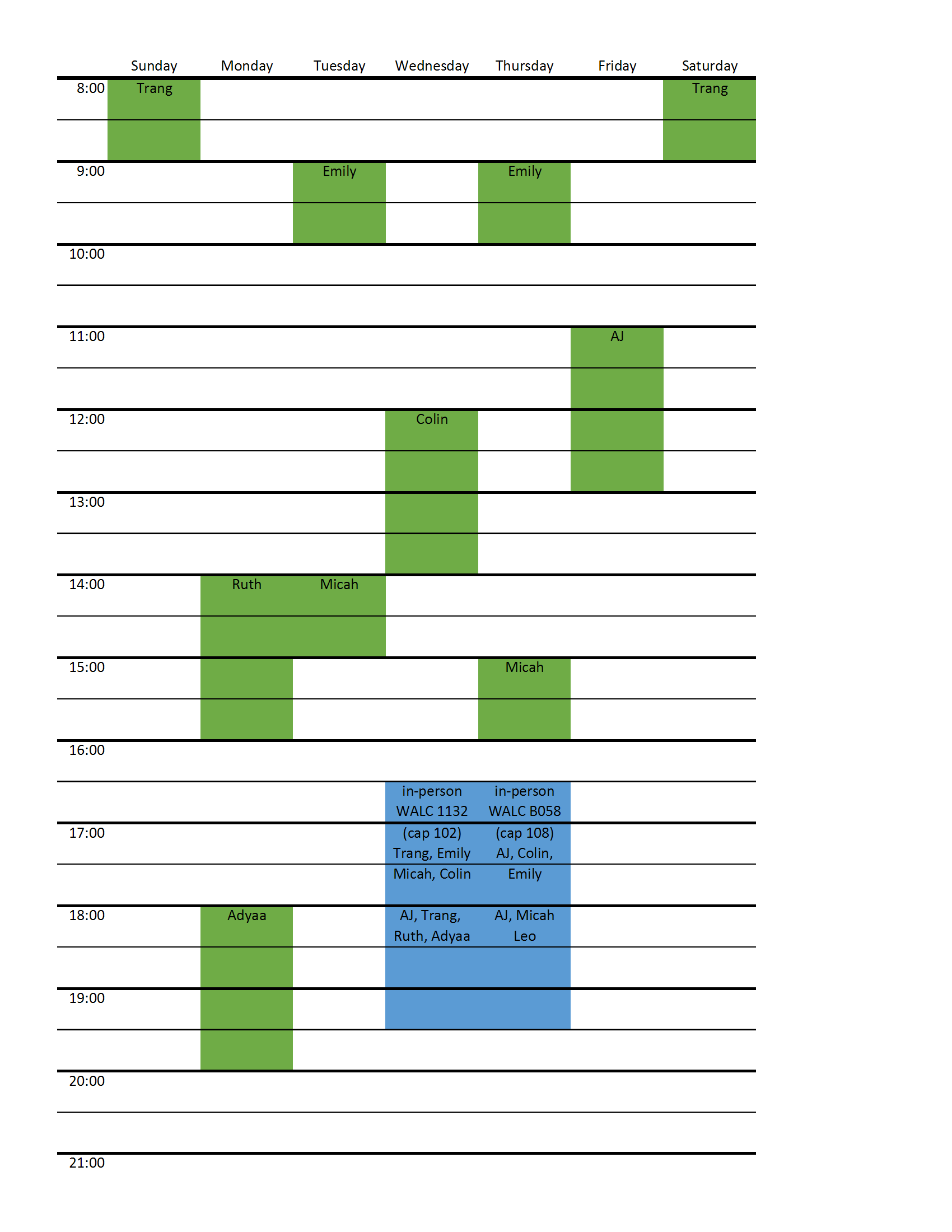
In-person help sessions are in WALC 1132 on Wednesday, 4:30-7:20 PM and in WALC B058 on Thursday, 4:30-7:20 PM.
Virtual help sessions are held via Zoom at https://purdue-edu.zoom.us/j/97859063838, starting August 31st.
All times are in eastern daylight savings time (EDT).
Schedule#
Monday:#
2:00 PM - 3:00 PM - Ruth
6:00 PM - 8:00 PM - Adyaa
Tuesday:#
9:00 AM - 10:00 AM - Emily
2:00 PM - 3:00 PM - Micah
Wednesday:#
12:00 PM - 2:00 PM - Colin
4:30 PM - 7:20 PM, in-person (WALC 1132)
Thursday:#
9:00 AM - 10:00 AM - Emily
3:00 PM - 4:00 PM - Micah
4:30 PM - 7:20 PM, in-person (WALC B058)
Friday:#
11:00 AM - 1:00 PM - AJ
Saturday:#
8:00 AM - 9:00 AM - Trang
Sunday:#
8:00 AM - 9:00 AM - Trang
Table View:#
How to Join#
Note
Joining requires your Purdue provided Zoom account.
Open Zoom and select SSO (single sign-on) from the login screen. You may need to log out of your personal Zoom account before you can log in using your Purdue account.
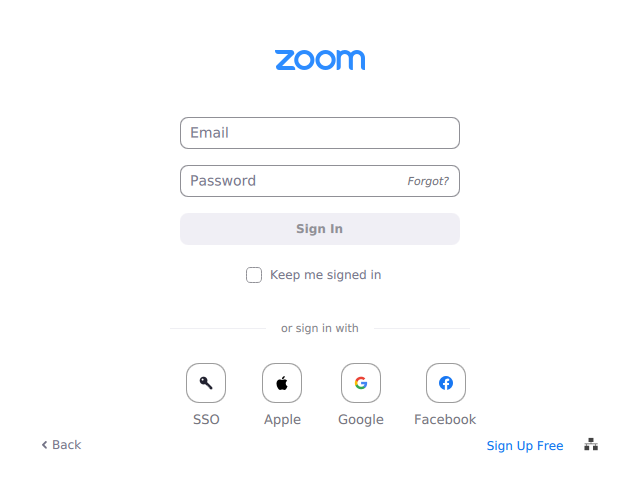
Fig. 16 Select SSO from the Zoom login screen.#
Enter
purdue-eduwhen asked for a domain (note the hyphen,-, betweenpurdueandeduin the domain).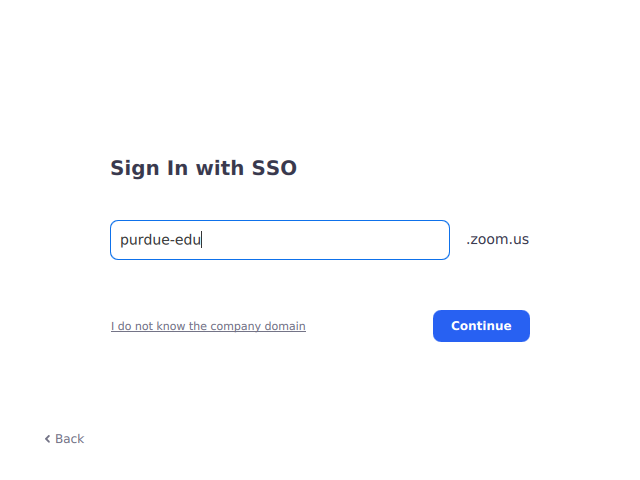
Fig. 17 Enter
purdue-eduas the domain.#Log in to Purdue through the pop-up login screen.

Fig. 18 Enter your Purdue credentials to log in.#
Back in Zoom, click the large blue Join button.
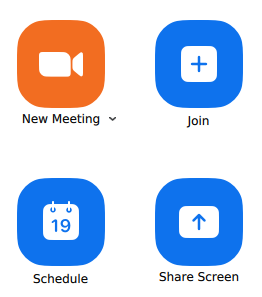
Fig. 19 Click the large blue Join button.#
In the pop-up window, enter meeting ID
978 5906 3838and click the Join at the bottom. Alternatively, you can click this link after you have signed in.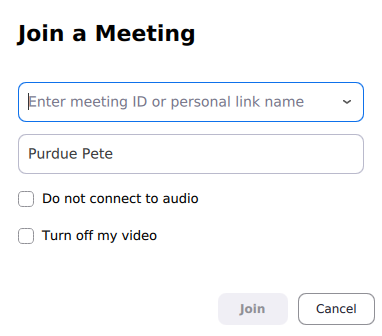
Fig. 20 Enter meeting ID
978 5906 3838and click the Join button.#